
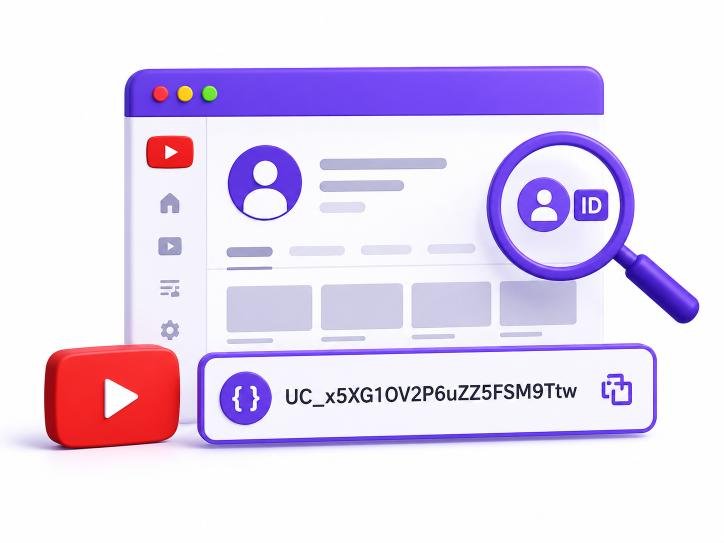
A YouTube channel ID is a permanent string that starts with “UC” and never changes, even if the channel renames itself or switches its handle three times. That permanence is exactly why you need it for anything beyond casually browsing — embed codes, RSS feeds, API calls, schema markup, and competitor tracking spreadsheets all require the ID, not the display name. Finding it manually means digging through page source code. Finding it with the right tool takes about three seconds. This guide covers both the fast way and what the ID is actually for once you have it.
What a Channel ID Actually Is (And Why the Handle Isn’t Enough)
A channel’s handle — the “@username” you see in the URL — can change. A channel’s display name can change too. The channel ID can’t. It’s a fixed 24-character string, always starting with “UC,” assigned the moment a channel is created and locked to that channel permanently. Any system that needs to reference a specific channel reliably — YouTube’s own API, embed widgets, third-party analytics tools — uses the ID instead of the handle for exactly this reason.
This matters more than it sounds like it should. If you’ve built a tracking spreadsheet around a competitor’s @handle and they rebrand next quarter, your spreadsheet breaks. Build it around the channel ID instead, and it survives every rename the channel goes through.
The 3-Second Method: Using a Channel ID Finder
Manually finding a channel ID means opening the channel page, viewing the page source, and searching the raw HTML for “channelId” — a process most people get wrong on the first try and that takes a couple of minutes even when it goes smoothly. A dedicated finder tool skips all of that.
XR Save’s Channel ID Finder works in three steps: paste the channel URL or handle, click the button, and copy the ID or the full channel URL it returns alongside it. There’s no account, no API key, and no limit on how many channels you can look up. The tool fetches the ID directly from the channel’s public metadata, so the result is exact, not a guess based on the handle.
Why This Beats the View-Source Method
Viewing page source works, technically, but it assumes you know what you’re looking for in several hundred kilobytes of minified HTML. It also breaks if YouTube changes its page structure, which it does periodically. A purpose-built finder tool isn’t dependent on you knowing where in the source the ID sits — it’s built specifically to extract that one piece of data and nothing else, which is also why it’s faster.
What You Actually Need a Channel ID For
The ID itself isn’t useful in isolation. It’s useful because of what it unlocks once you have it.
Tracking Competitor Channels Over Time
If you’re researching a niche or keeping an eye on a handful of competing channels, the ID is what makes long-term tracking reliable. Handles and display names shift; the ID doesn’t. This is exactly the reason it’s worth locking in competitor channel IDs early, a step covered in XR Save’s guide on how to find your YouTube niche in 2026 — once you’ve identified a handful of channels worth watching in a candidate niche, grabbing their IDs means your tracking survives any rebrand.
Pairing It With Channel Stats for a Full Picture
A channel ID on its own tells you which channel you’re looking at — it doesn’t tell you how that channel is performing. XR Save’s Channel Stats Checker returns subscriber count, total views, and video count for any public channel, so pairing the two tools gives you a stable identifier plus the actual numbers behind it. Look up the ID first if you’re building anything that needs to reference the channel reliably, then pull the stats to see what that channel is actually doing.
Embeds, RSS Feeds, and Developer Use Cases
Anyone building an embed widget, pulling a channel’s RSS feed, or working with the YouTube Data API needs the channel ID specifically — display names and handles aren’t accepted in most of these contexts. If you’re a developer wiring up a site integration or a schema markup project that references a specific channel, the ID is the only value that won’t break when the channel updates its branding.
Quick Visual Research on a Channel
Once you have a channel ID confirmed, it’s often useful to see how that channel presents itself visually before going further into research. XR Save’s Channel Banner Downloader pulls a channel’s banner image in full resolution, which gives you a fast look at how a channel brands itself across uploads — useful context when you’re comparing several channels in the same space.
Frequently Asked Questions
Does a YouTube channel ID ever change?
No. A channel ID is assigned once, when the channel is created, and stays fixed for the life of the channel even through handle changes, display name changes, or full rebrands.
Can I find a channel ID from just the channel’s handle?
Yes. A channel ID finder tool accepts either the full channel URL or just the @handle and returns the same result either way, since both point back to the same underlying channel metadata.
Is the channel ID the same as the channel URL?
No, though they’re related. The channel ID is the fixed 24-character identifier; the channel URL is a web address that can be built using either the ID or, more commonly today, the channel’s handle.
Do I need a YouTube API key to find a channel ID?
No. A browser-based finder tool reads the same public metadata the API would return, without requiring you to register for API access or manage a key for a one-off lookup.
Why does the channel ID always start with “UC”?
“UC” is YouTube’s standard prefix for channel-type IDs in its system, distinguishing them from other ID types like playlist IDs, which use a different prefix pattern.
Get the Channel ID You Need in Seconds
Whether you’re tracking a competitor, building an embed, or setting up a schema markup project, the channel ID is the one identifier that won’t break later. Paste any channel URL or handle into XR Save’s Channel ID Finder and get the exact ID and full channel URL back instantly — free, no account, unlimited use at xrsave.com.